

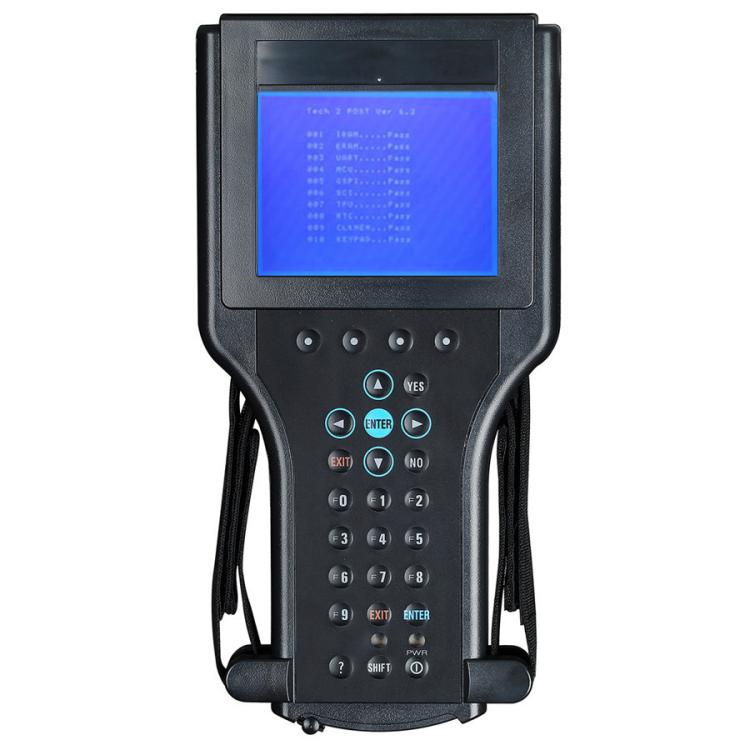


Tech2 Vehicle Chassis Power System Inspection Scanner For 1999-2012 Holden 147.000, US Plug
Tech2 Vehicle Chassis Power System Inspection Scanner For 1999-2012 Holden 147.000, US Plug

Spread the cost
Mobicred is a third-party credit option. Approval and terms are determined by Mobicred.
- Approval by Mobicred
- Rate & fees in your pre-agreement
- Repayments confirmed before acceptance
- Your interest rate, fees and repayment schedule are shown in Mobicred's pre-agreement.
- Approval and your credit limit are determined by Mobicred.
- Review the credit terms before accepting the agreement.
Available payment options are confirmed at checkout.
Continue to checkoutDon't have Mobicred yet? Visit Mobicred →
Credit is subject to Mobicred approval and terms. Your limit, interest rate, fees and repayment schedule are disclosed by Mobicred before acceptance. Mobicred terms and conditions
Duties & Import Tax Information
In Stock
Processing: 1–3 days
Free shipping for this item Free shipping from R250 Orders under R250 ship for R49.
Couldn't load pickup availability


Product details
Description
1. Language: English
2. Original software with powerful and comprehensive testing capabilities for testing powertrains, bodywork, and chassis
3. Upgradable hardware ensures the instrument remains current
4. Large screen with bright backlight
5. RS232 and RS485 ports for connecting to a computer or other instruments
6. Stores and replays fault codes, locks data boxes, and fault logs
7. Allows viewing of vehicle diagnostic test status during road tests
8. User-friendly button layout for easy operation
9. Uses a 32MB card for large capacity and easy upgrades
10. Connects to a CANdi module for testing vehicles equipped with a CAN system (optional)
11. Technicians can use the maintenance programming system to reprogram and configure the computer on vehicles manufactured after 1993. This requires a computer, Tech2, and the maintenance programming system CD-ROM.
Operation steps are as follows:
1. Power on the instrument. The instrument will enter self-test mode, and the screen will display "SYSTEM INITIANLIZING" for approximately 4 seconds. The instrument will beep once, and the screen will display the instrument version information.
2. Press the Enter key to enter the main menu. The screen will display: F0 - Diagnostics, F1 - Service Program System, F2 - Display Capture Data, F3 - Tool Options, F4 - Enable.
3. Use the up and down cursor keys to select the target and press the Enter key to confirm.
4. Select the F0 function to enter the vehicle specifications option. Use the cursor keys to select the model year. Press the Enter key to enter the vehicle system, select the appropriate type, and press the Enter key again to enter the system selection menu. The screen will display: F0 - Engine Power, F1 - Body, F2 - Chassis, F3 - Diagnostic Circuit Check.
5. Move the cursor to F0 and press Enter to enter the engine type selection. You can choose between the 3.2L V6G8 and 3.1L V6L82 models. Select the former and press Enter to directly access the following functions. Select the latter and press Enter, then select BUICK and press Enter to access the following functions. The screen displays: F0 - DTC Display, F1 - Data Display, F2 - Special Functions, F3 - Capture, F4 - I/M Information, F5 - ID Information.
6. Select DTC and press Enter to enter the diagnostic code function: F0 - DTC Information, F1 - Failure Log, F2 - Clear DTC, F3 - Capture Information.
7. Move the cursor to F0 and press Enter to confirm. The following screen appears: F0 - DTC Information, F1 - View DTCs (Special DTCs), F2 - Clear DTC Log, F3 - Diagnostic Test Instructions.
8. Move the cursor to select F0 and press Enter to confirm. The fault code will be displayed. Use the cursor keys to turn pages; or press the corresponding INFO key to display relevant help information.
9. Return to "7," select F1 and press Enter to confirm. The fault query interface will be displayed. You can now enter the fault code to query the corresponding fault and receive relevant help information.
10. Return to "6," select F1 and press Enter to confirm. The fault code will be displayed.
11. Return to "6," select F2 and press Enter to confirm. The screen will prompt: "Are you sure you want to clear?" (Y/N). Press Y to clear, or N to cancel.
12. Return to "6," select F3 and press Enter to confirm. The screen will display: "Recapture information," "Repeat display," and "Are you sure you want to refresh?" (Y/N). Press Y to recapture, or N to repeat.
13. Return to "5", select F2, and press Enter to confirm. The screen displays: Engine, Transmission.
14. Move the cursor to select "Engine" and press Enter to confirm. The following operation interface appears: F0 - Engine Data, F1 - Catalyst Data, F2 - EGR Valve Data, F3 - Oxygen Sensor Data, F4 - Instrument Data, F5 - Ignition Data, F6 - Output Driver Data, F7 - Carbon Canister Data.
15. Move the cursor to select F0 Engine Data and press Enter to enter the following interface: Engine Speed, Ideal Idle Speed, Water Temperature, Intake Air Temperature, Air Flow Sensor, Engine Load, etc. (a total of 58 items).
16. Select one to perform a test.
17. Return to "5", move the cursor to select F2 "Special Functions", and press Enter to enter the following interface: Engine Output Control, Transmission Output Control, Fuel System, Idle Control System, Crankshaft Position Change Learning Function.
18. Select Engine Output Control and press Enter. The screen will display: Fan Relay, Malfunction Indicator Lamp, Air Conditioning Relay, Canister System, EGR Solenoid, Closed-Loop Data, Cruise Control, Fuel Pump, GENL Terminal.
19. Select to access the corresponding function.
Tech 2 standard configuration
1. Head unit
2. GM32M PCMCIA card
3. 110V transformer
4. Data cable, self-test connector
5. North American 12/19 Pin connector
6. OBD II connector
7. Cigarette lighter connection
8. Box
9. RS232 interface self-test connector
Questions about features, compatibility, or warranty? Chat with our local support team!


